How to Use One-Click Install on Agent Skills Finder
Learn how to use the install command on skill pages, batch install from collections, and install all skills from favorites.
 Agent Skills Finder Team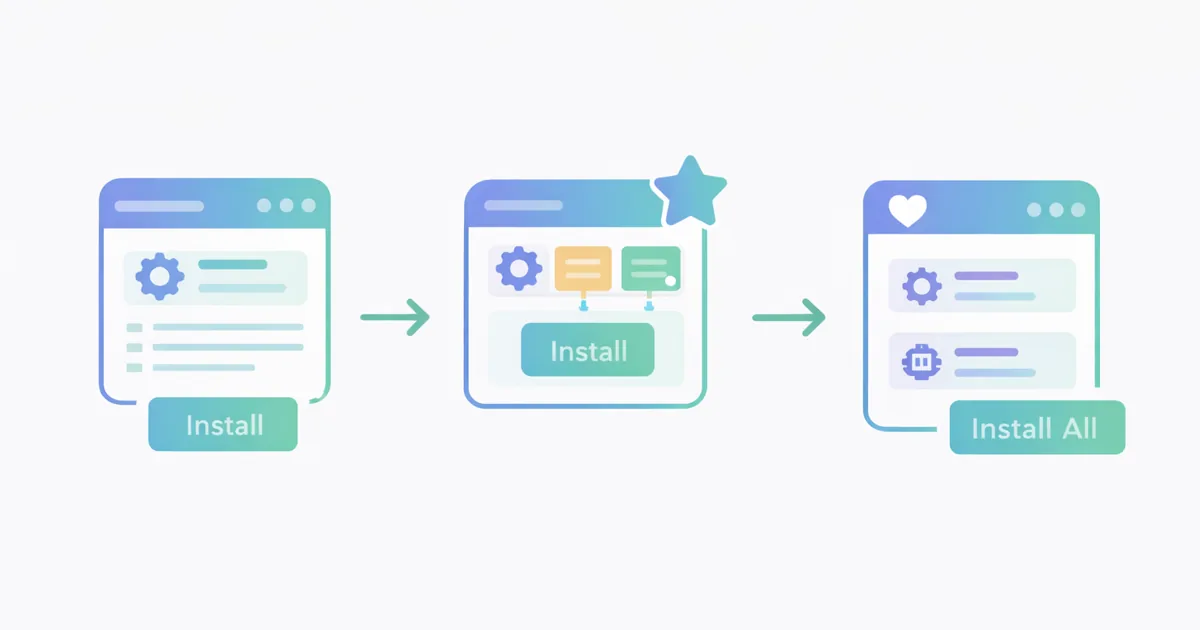
This guide explains how installation works on Agent Skills Finder.
If you only need one thing from the site, this is probably it: find the right skill, then install it without rebuilding the command by hand.
Before you start: what npx skills does
Agent Skills Finder uses the skills CLI for installation.
The basic command is:
npx skills add <source>
According to the official Skills CLI docs, you can run the CLI directly with npx, so you do not need to install the CLI first. The upstream vercel-labs/skills README also documents the flags used on this site, including:
--skillto install one specific skill--agentto target specific agents--globalto install to user scope instead of project scope--copyto copy files instead of symlinking--yesto skip confirmation prompts
If you already have Node.js and npm/npx available, you are ready to use the install features on the site.
There are 3 install entry points on the site
You can install skills from:
- A single skill detail page
- A collection, including public collections and your private collections in My Collections
- My Favorites
Each one is useful for a different situation.
Option 1: install from a skill detail page
Use this when you already know which skill you want.
Where to find it
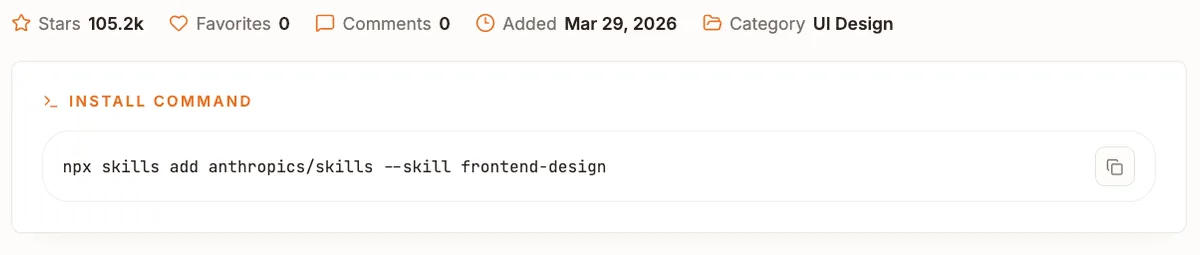
Open any skill from search, categories, hot, or new. On the detail page, you will see the install command near the main action area.
What it gives you
The detail page gives you one install command for that skill.
In practice, this is the fastest path when:
- you only need one skill
- you already reviewed the files and overview
- you want to copy one command and run it immediately
When to use this path
Choose the detail-page command when you want the simplest install flow.
If you are still comparing multiple skills, do not rush. Read the overview, check the files, and then copy the command once you know this is the right one.
Option 2: install from a collection
Use this when one task needs more than one skill.
A collection can package several related skills into one workflow, then generate install output for them together.
Public collections
Open the public collections page, then open any published collection.
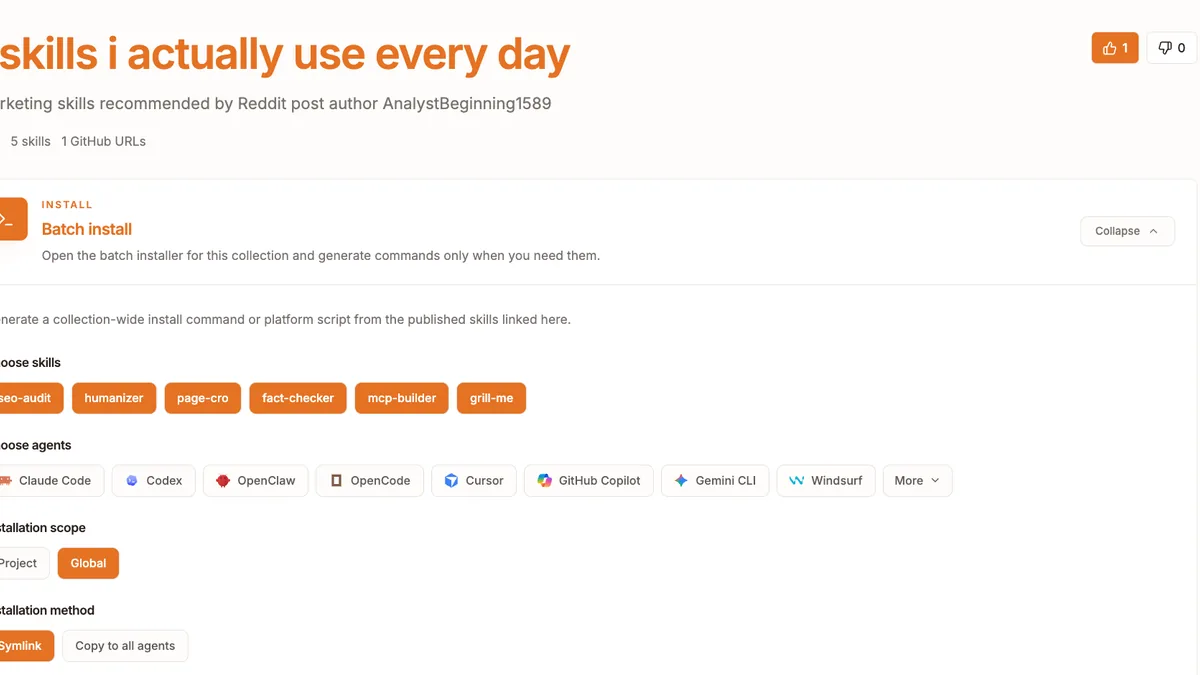
On the collection detail page, the INSTALL section lets you:
- choose which skills from the collection you want to include
- choose one or more target agents
- choose
ProjectorGlobalscope - choose
SymlinkorCopy to all agents - generate output for
Agent,macOS,Linux, orWindows
This is useful when you want the install output and the workflow notes in the same place.
Private collections in My Collections
If you already have your own saved workflow, open My Collections.
Your private and public collections both support install actions inside the account area. This is the better path when:
- the workflow is for your own repeated use
- you are still editing the collection
- you do not need the public page yet
Think of this as your personal batch install workspace.
What happens in the collection install panel
The collection install panel does more than copy one command.
It builds installation output from the skills inside the collection, then adds the selected options. For example, the site can append agent targets and non-interactive flags, and it can generate shell scripts when you choose macOS, Linux, or Windows output.
This is why collections are the right install path for multi-step workflows.
Option 3: install from favorites
Use this when you have saved several skills over time and want to install them together.
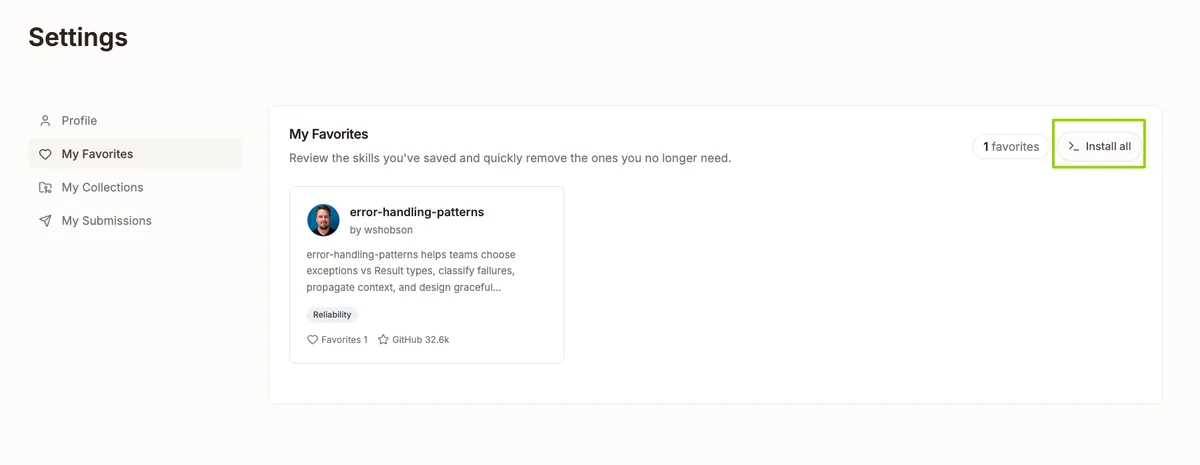
Open My Favorites. The page includes an Install all action.
That install panel works much like the collection installer. It can generate:
- batch install commands from the skills you saved
- agent-specific output
- platform scripts
This is a good fit when your favorites list has already become an informal shortlist and you want to turn it into an actual setup.
Which install path should you choose?
Use the detail page when:
- you want one skill
- you already know it is the right one
Use collections when:
- you need a full workflow
- you want install output plus workflow notes
- you want to control scope, method, agent, and platform in one place
Use favorites when:
- you have saved several candidate skills
- you want to batch install from your shortlist
A simple way to get started
If this is your first time using the install tools, try them in this order:
- Open search and find one skill.
- Install it from the detail page.
- Save a few related skills to My Favorites.
- Then try the
Install allflow. - When you start repeating the same setup, move those skills into My Collections.
That progression usually makes the feature set click.
What to do next
If you want the simplest starting point, begin with one skill page.
If you already work with repeatable multi-skill setups, go straight to collections or My Collections.